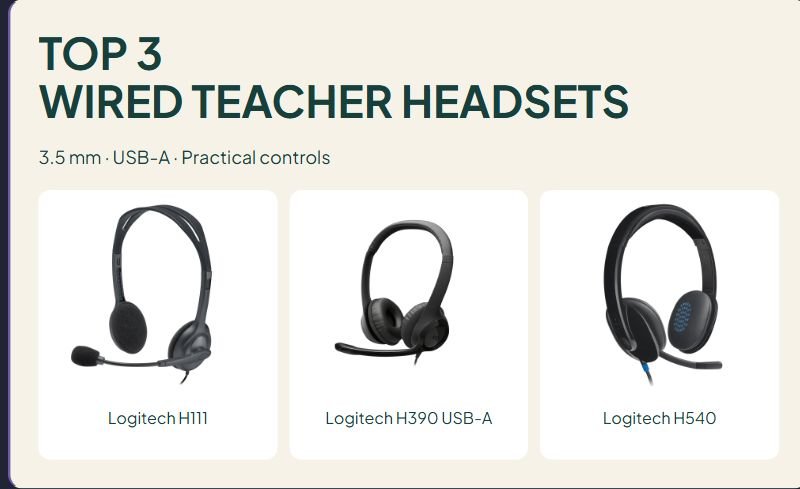

TOP 3
WIRED TEACHER HEADSETS
3.5 mm · USB-A · Practical controls
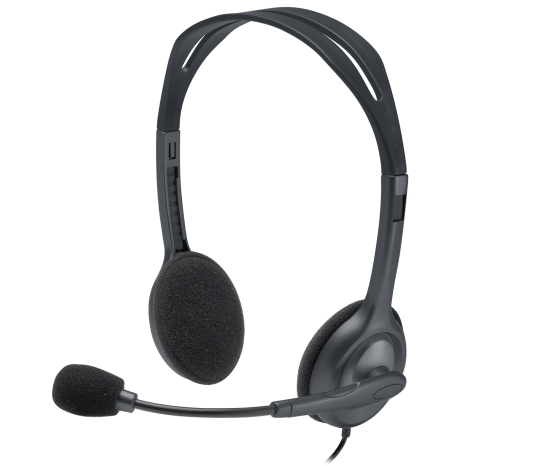
Logitech H111
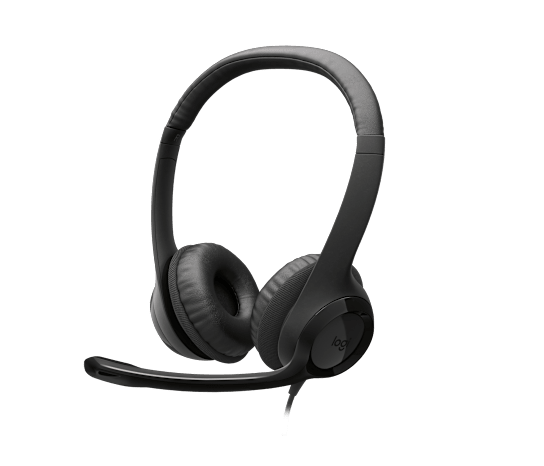
Logitech H390 USB-A
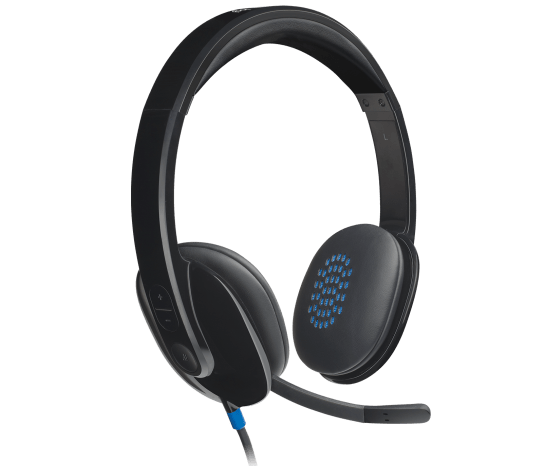
Logitech H540
Affiliate disclosure: As an Amazon Associate I earn from qualifying purchases. Purchases through our links may earn a commission at no additional cost to you.
Wired headsets for teachers can simplify online meetings, recorded feedback, and computer-based lessons. They also avoid a charging routine. Before comparing ear cushions or controls, check the connection your device accepts. A headset that does not match the port or microphone input adds an extra problem to the lesson.
This guide compares three Logitech models for teachers and computer stations: H111, H390 USB-A, and H540. It uses manufacturer information and verified U.S. Amazon listings. We have not tested their sound, comfort, microphone performance, or long-term durability. This is a focused connection-and-controls comparison within one brand.
Student fit matters: These are general-purpose headsets. We are not recommending them as a universal fit for young children or as volume-limited children’s headphones. Try the fit, controls, and device setup before ordering a class set.
Wired teacher headsets at a glance
| Model | Selected connection | Controls or adjustment | Consider for | Main limitation |
|---|---|---|---|---|
| H111 | Single 3.5 mm plug | Mic can rotate to either side | A device with a compatible headset jack | Must verify microphone support at the jack |
| H390 | USB-A, black version | Inline volume and mute | Computer meetings and speaking tasks | Selected listing is USB-A; USB-C is another version |
| H540 | USB-A | Volume and mute on right ear cup | Users who prefer controls on the headset | On-ear buttons may take practice to find |
Three wired headsets for teacher workstations
1. Logitech H111: for a compatible 3.5 mm headset jack
The H111 uses a single 3.5 mm audio connection, an adjustable headband, and foam ear cushions. Its microphone boom rotates so it can be positioned on either side. This layout is worth considering when the device already has the right combined headphone-and-microphone jack.
Useful feature: The reversible boom lets you choose the microphone side. That can matter when a writing hand, camera, or workspace arrangement makes one side less convenient.
Limitation: A socket that accepts headphones may not accept the microphone through the same plug. A desktop with separate audio and microphone jacks may need a compatible splitter. A USB-C-only device needs a suitable audio adapter; check that it supports a headset microphone.
Fit check: Adjust the band and position the boom, then make a short recording in the actual classroom application. Hearing sound through the earphones does not prove the microphone is working.
Logitech H111 manufacturer information
Check Logitech H111 on Amazon.com →
2. Logitech H390 USB-A: for inline mute and volume controls
The selected black H390 connects through USB-A. It has a rotating microphone boom, adjustable headband, leatherette ear cushions, and volume and mute controls on the cable. Logitech also offers a USB-C version, so verify the connector when comparing listings.
Useful feature: The inline controller keeps the basic controls off the computer screen. A teacher can mute during a pause without finding a meeting window, provided the controller is easy to reach.
Limitation: An inline control can catch on a desk edge or sit beyond comfortable reach in a particular setup. Check cable routing rather than assuming a longer cable is always easier to manage.
Fit check: Place the computer where it will be used. Route the cable, sit normally, and find the mute control without looking. Then verify both the headset mute and the application’s mute behavior.
Logitech H390 USB-A manufacturer information
Check Logitech H390 USB-A on Amazon.com →
3. Logitech H540: for controls on the ear cup
The H540 uses USB-A and places volume and mute controls on the right ear cup. A light on the cord indicates microphone mute status. Its right-side boom can be moved out of the way, and the headband and ear cups have leatherette padding.
Useful feature: Users who prefer a consistent control location can reach toward the ear cup instead of searching along a cable. That is a practical difference to try when choosing between it and the H390.
Limitation: Controls beside the ear are not visible to the wearer. Button location, hand movement, and the mute indicator’s position may suit some users better than others. We have not measured an audio advantage over the other models.
Fit check: Practice changing volume and muting while seated at the desk. Check whether the controls are comfortable to operate without shifting the headset.
Logitech H540 manufacturer information
Check Logitech H540 on Amazon.com →
Check the complete connection before ordering
Match the plug to the actual device
List the ports on the school computer or tablet. Include whether an adapter or dock occupies a port already. USB-A and USB-C plugs are different shapes; a 3.5 mm audio socket is a third connection. A plug fitting physically does not guarantee that every audio function is supported through an adapter.
Select both input and output
After connecting, choose the headset as the listening device and the microphone in system settings and the lesson application. Browsers may request microphone permission. A meeting app can retain a different microphone even after the system recognizes a new headset. Test with the school-managed device and approved application.
Understand the microphone claim
A noise-reducing microphone concerns the sound sent to listeners. It does not establish that the earphones provide active noise cancellation for the wearer, or that nearby conversations will disappear from a recording. Try a short spoken task in the room where the headset will be used.
Before buying a classroom set
- Try one first. Check the fit with intended users and the actual devices.
- Test one real task. Record a short reading response or join an approved meeting.
- Check controls. Confirm that users can locate mute and volume reliably.
- Plan storage. Give each headset a place that avoids tight cable bends and tangled booms.
- Plan cleaning. Follow the maker’s guidance for cushions and shared equipment.
- Price the complete setup. Include adapters, storage, spares, and any replacement parts you can actually obtain.
Keep listening levels comfortable and build in breaks. A mute button or volume control is not evidence of a hard volume limit. If your school requires a particular limit, child-specific fit, or accessibility feature, confirm that requirement with the manufacturer before purchasing.
What useful customer feedback should tell you
Look for the exact connector and model, device used, time owned, cushion wear, microphone clarity, and cable issues. Reviews that combine USB-A and USB-C variants may not answer a connector-specific question. A comment about comfort on one adult does not establish a good fit for a class of children. We have not reproduced Amazon reviews or assigned star scores.
For the visual side of a computer lesson, see our document camera comparison. For brief independent work intervals, compare visual timers for classrooms and homework.
Wired teacher headset questions
Is USB better than 3.5 mm?
Choose the connection that fits the device and task. USB headsets provide a computer audio connection through USB; an analog headset relies on the device’s compatible audio jack. Neither connector alone proves better comfort or better lesson results.
Will these work on a Chromebook?
Check the exact model, available ports, adapter if needed, and the school’s managed settings. Verify that both playback and recording work in the intended app. A general compatibility claim does not replace this classroom check.
Do I need a microphone for listening activities?
Only if the task involves speaking or recording. For listening alone, compare a suitable headphone option too. Buying a microphone for every station may add equipment that your lesson does not need.
Which should I shortlist?
Consider H111 when a compatible combined audio jack is available. Compare H390 USB-A and H540 for a USB-A computer, then try inline versus ear-cup controls. For younger students, begin with fit and any required volume-limiting features before selecting a general-purpose model.










Leave a Comment