

In addition, a special education service tracker is the one page you reach for when someone asks, “Which of your students get OT again?” Picture the first week of school: a new paraprofessional joins your team, the speech therapist changes her schedule, and a parent emails about a service you thought had ended. Without one clear summary, you end up digging through IEPs between classes.
After reading this guide, you will be able to set up a one-page caseload summary, fill it accurately from current documents, keep it updated through the year, and use it to plan schedules and meetings. As a result, nothing important should slip through the cracks when people or plans change.
Examples are fictional. Adapt to the student’s goals and agreed supports. This is guidance, not a diagnosis.
At a glance
- A one-page tracker shows every student’s eligibility and supports at a glance.
- Fill it only from current, signed documents, never from memory.
- Use consistent support level codes so anyone can read it quickly.
- Update it after every IEP meeting, amendment, or move.
- Keep it private and share it only with staff who need it.
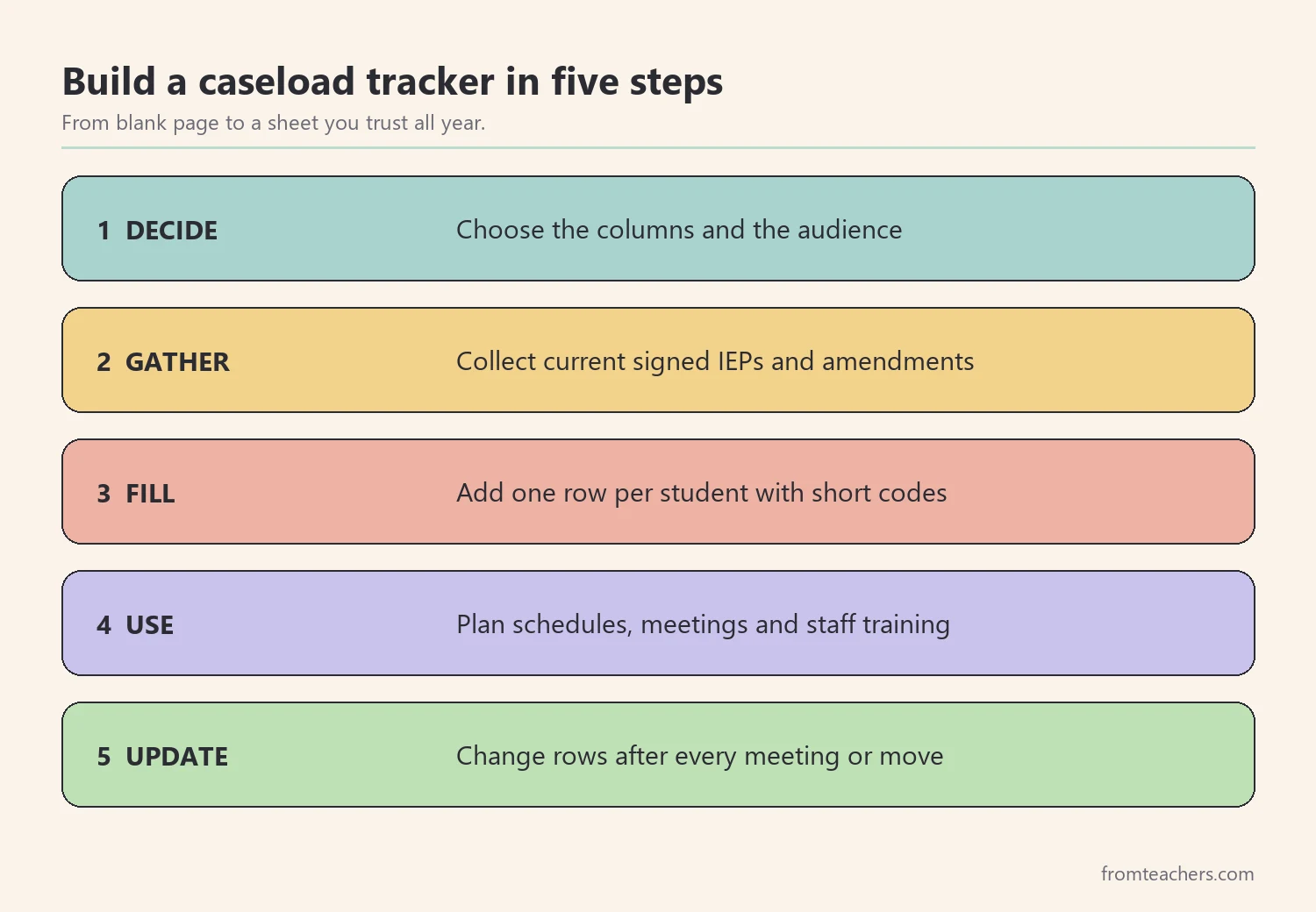
1. Decide what your special education service tracker must show
First, decide what questions the page needs to answer. Most case managers need to see, in a few seconds, who is on the caseload, what each student qualifies under, and which services each student receives. Anything beyond that belongs in the IEP itself, not on a summary sheet.
For example, a practical special education service tracker usually has these columns:
| Column | What it holds | Why it helps |
|---|---|---|
| Student | Name or agreed initials | Quick lookup |
| Qualification | Eligibility category | Context for planning |
| Speech, Behavior, OT, PT | Support level for each | Who needs what |
| Additional services | Anything else agreed | Nothing gets missed |
It also helps to decide the order of rows. Some case managers sort by grade, others by homeroom or by last name. Sorting by the way your week is organized, for example by grade level if you push in by grade, makes the special education service tracker faster to use during a busy day.
Next, decide who the audience is. If only you will use it, short codes are fine. However, if paraprofessionals or a substitute will read it, use plain words or include a small key at the top of the page.
Finally, keep the scope narrow on purpose. A special education service tracker is a map, not the territory. It points people to the right document; it does not replace the document. For example, it may show that Maya, a fictional third grader, receives speech and OT, while her IEP holds the minutes, goals, and settings.
2. Gather current information before you fill anything in
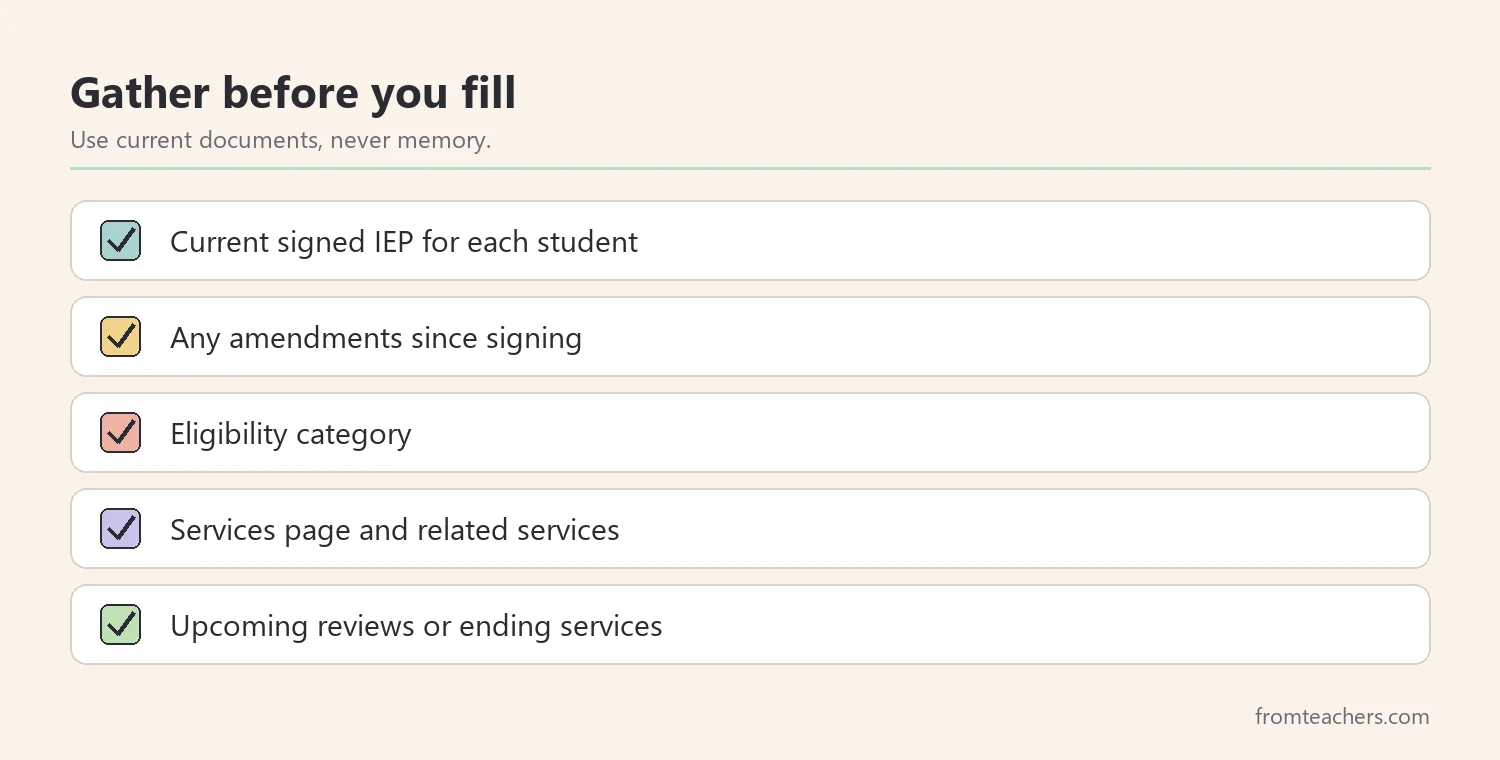
Before writing a single row, collect the current IEP for every student on your caseload. Use the most recent signed version plus any amendments. Notably, the most common tracker error is copying last year’s services onto this year’s sheet.
If you inherited a caseload, ask the previous case manager for any notes, but still verify everything against the IEPs. A special education service tracker built on someone else’s memory can carry their errors forward for a whole year.
Then check each source in the same order. Look at eligibility, then the services page, then any notes about related services or supplementary supports. Working in the same order every time makes errors easier to spot.
Also note anything that is about to change. If a reevaluation is due next month, or a service is ending at the semester, mark it lightly so you remember to revisit that row. In practice, a small symbol or a short note in the additional services column works well.
For Maya, the gathering step looked like this:
- Current IEP signed in the spring
- Eligibility: speech or language impairment
- Services: speech therapy and occupational therapy
- Additional: preferential seating noted as an accommodation
- Upcoming: annual review in the spring
Next, once you have this for every student, filling in the special education service tracker takes minutes rather than hours. Moreover, you now know the sheet is accurate on the day you build it.
3. Fill the special education service tracker with clear codes
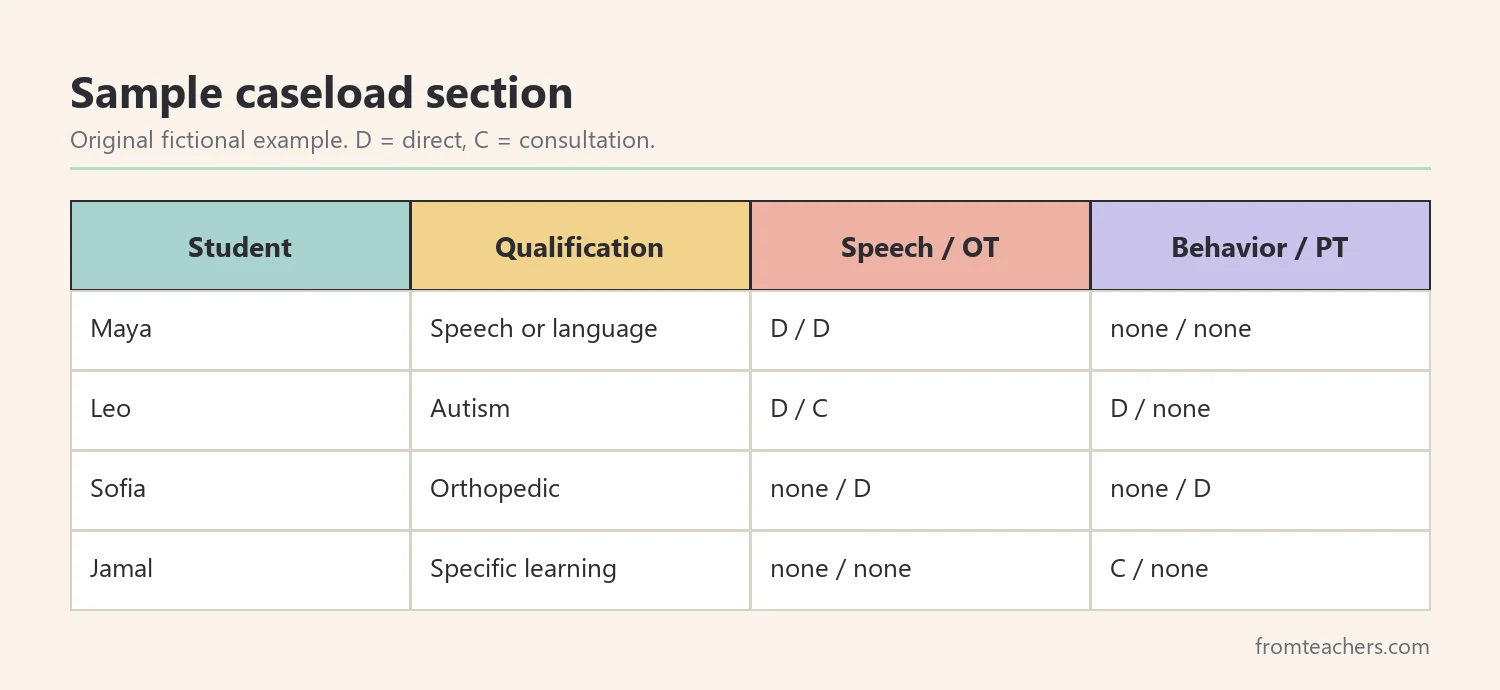
Now fill one row per student. For each service column, use a simple support level instead of long notes. A three-level code works for many teams: blank for none, “C” for consultation, and “D” for direct service. Of course, your district may use different terms, so match the language your IEPs already use.
Here is a fictional caseload section filled this way:
| Student | Qualification | Speech / OT | Behavior / PT |
|---|---|---|---|
| Maya | Speech or language | D / D | none / none |
| Leo | Autism | D / C | D / none |
| Sofia | Orthopedic | none / D | none / D |
| Jamal | Specific learning | none / none | C / none |
Also write a short key at the top of the page, for example “D = direct, C = consultation, blank = none.” With the key in place, a substitute or new team member can read the special education service tracker without asking you to translate it.
Put this step into practice
Similarly, keep the additional services column for anything that does not fit the main columns, such as assistive technology, counseling, or transportation. Write one or two words only, and leave the details to the IEP.
Also, read across this sample and you can count quickly: two of the four students get direct speech, two get direct OT, one gets direct behavior support, and one gets direct PT. That kind of count is exactly what a special education service tracker should make easy.
If you would rather not build the layout yourself, the fillable Student Support Summary already includes Student and Qualification columns, support level columns for Speech, Behavior, OT, and PT, and an additional services column, with room for a full caseload on one sheet.
4. Use the tracker to plan schedules and meetings
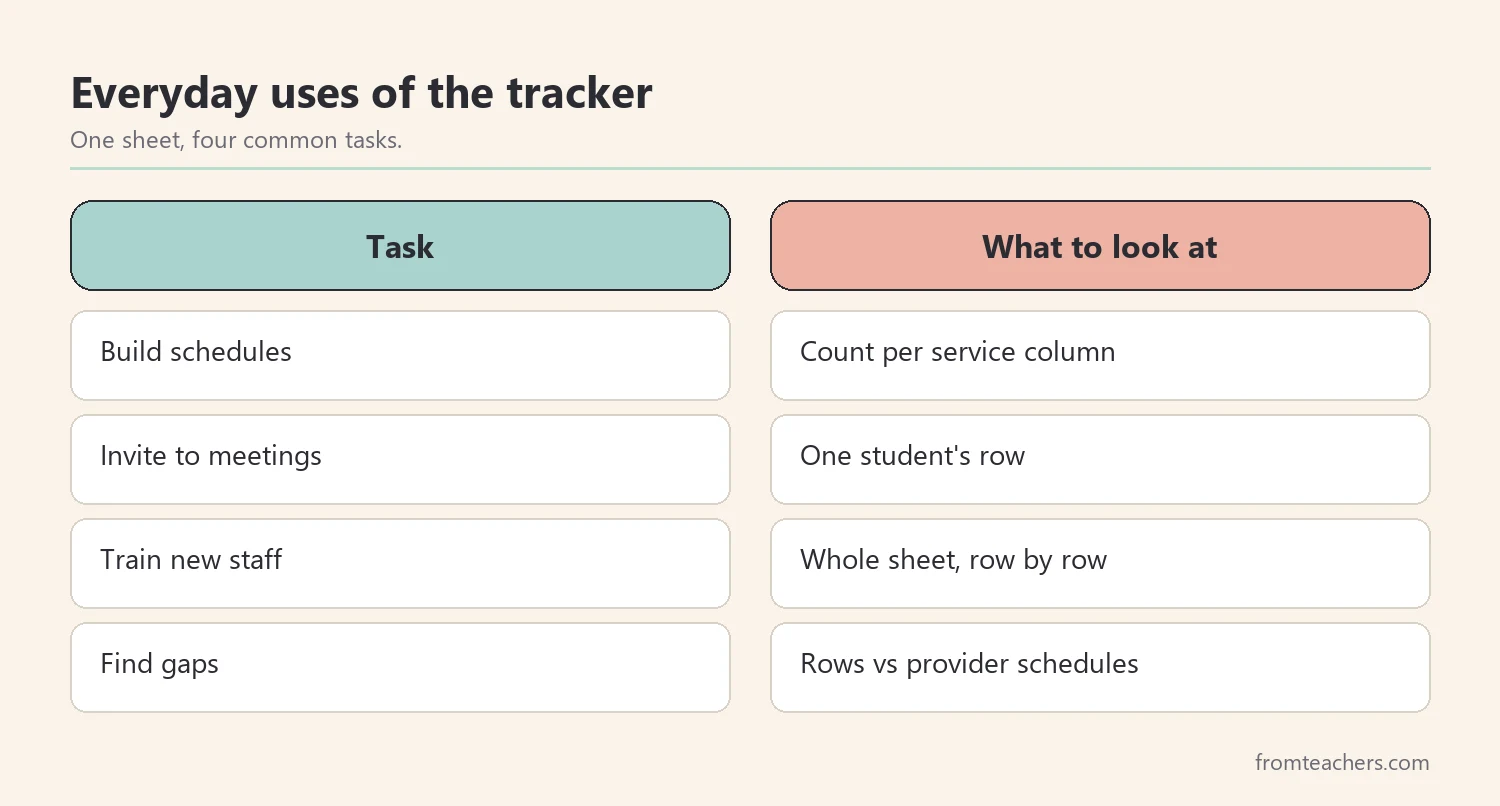
As a result, once the sheet is filled, put it to work. First, scan each service column to see how many students need a given provider. This helps you and the related service providers build schedules that do not pull the same student out of class twice in one block.
Second, use the special education service tracker before meetings. A quick look shows which providers should attend Maya’s annual review, for example the speech therapist and the occupational therapist. Consequently, invitations go to the right people the first time.
For example, imagine the speech therapist asks to move Maya’s sessions from Tuesday to Thursday. Before agreeing, the case manager glances at Maya’s row, sees that she also receives OT, and checks that the new time does not overlap with her OT session. That check takes less than a minute, yet it prevents a scheduling clash that could cost Maya a session.
A quick classroom example
Third, use it when you onboard new staff. A new paraprofessional can learn the caseload in one sitting by reading across each row with you. Afterward, point them to the specific IEP sections they need for the students they support.
In addition, a special education service tracker makes conversations with administrators easier. When someone asks how many students on your caseload receive direct OT, you can answer in seconds and point to the sheet, rather than estimating.
Finally, use the tracker to spot gaps. If a student’s row shows a service but no provider has that student on a schedule, you have found a problem early. In contrast, a gap found at the annual review is much harder to explain.
| Task | What to look at |
|---|---|
| Build schedules | Count per service column |
| Invite to meetings | One student’s row |
| Train new staff | Whole sheet, row by row |
| Find gaps | Compare rows with provider schedules |
5. Keep your special education service tracker current all year
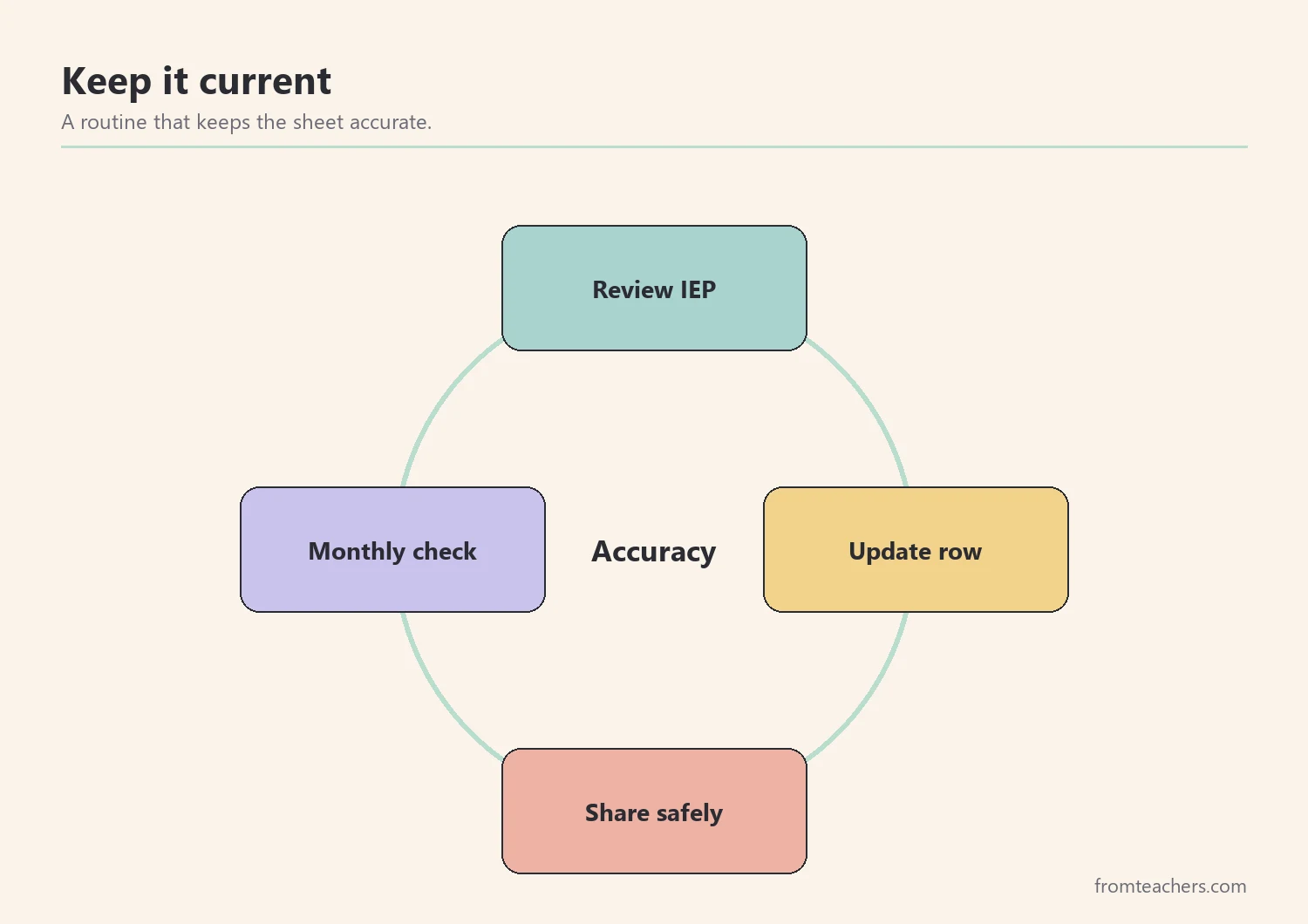
After that, a tracker is only useful while it is accurate. Therefore, set clear update triggers rather than trying to remember. Update the row right after an IEP meeting, an amendment, a reevaluation, a student moving in or out, or a change in provider.
Also add a “last updated” date at the top of the special education service tracker. When anyone reads it, they know how fresh it is. If the date is old, they know to check the IEP instead.
Similarly, a simple way to remember the triggers is to keep the sheet in the same folder or digital location as your meeting notes. Whenever you close a meeting file, the summary is right there, and the update takes a moment while details are still fresh.
Next, do a short monthly check. Pick one service column and compare it with that provider’s current list. For instance, in October compare the speech column with the speech therapist’s caseload; in November, compare OT. Over a year, every column gets checked several times without much effort.
Make it stick
At the end of the school year, save a final copy of the special education service tracker before you clear it for the next year. That copy, stored securely, can help you prepare transition notes for receiving teachers and check that each student’s services moved with them.
Also protect the sheet. It contains student information, so store it where your school allows, share it only with staff who need it, and follow district privacy procedures. A printed copy should not be left on a desk or a copier.
For Maya, a later amendment added a consultation for behavior support, so her row changed from the sample above. Because her case manager updated the row the same day, the behavior specialist was invited to the next team meeting without anyone needing to ask.
Finally, remember that the sheet supports people, not paperwork. The real goal is that every student receives the services the team agreed on, at the right time, from the right provider. A clear one-page summary is simply the easiest way to keep that promise visible every day.
Common mistakes and how to avoid them
- Copying last year’s services. Fix: fill every row from the current signed IEP and amendments.
- Writing long notes in each cell. Fix: use short support codes and keep details in the IEP.
- No update date. Fix: add “last updated” at the top and change it every time.
- Updating only once a year. Fix: update after every meeting, amendment, or move.
- Ignoring upcoming changes. Fix: mark reviews, reevaluations, and ending services so you revisit those rows on time.
- Sharing too widely. Fix: limit access to staff who need it and follow privacy rules.
Questions teachers and parents ask about special education service tracker
Who usually keeps a special education service tracker?
Most often the case manager or special education teacher keeps it. Related service providers and administrators may keep their own versions, but one shared, accurate sheet reduces confusion. When several people edit the same sheet, agree on who makes changes and how others are told, so two versions never drift apart during the year.
Can a tracker replace the IEP?
No. A special education service tracker is a quick reference that points to the IEP. Minutes, goals, settings, and accommodations should always be checked in the official document.
How often should I update it?
Update your special education service tracker after every change that affects services, and do a short monthly check of one column. That routine keeps it reliable without much extra work.
Should parents see the tracker?
A caseload sheet lists several students, so it should not be shared with families. Parents can always request information about their own child’s services through the IEP team.
Is a paper or digital tracker better?
Either can work for a special education service tracker. A fillable digital version is easier to update and reprint, while paper can be handy in meetings. Whichever you use, store it securely.
Related reading: Special Education Accommodation and Modification Tracker, The Power of Data Tracking in Special Education, and Accommodations vs Modifications in Special Education.
A companion resource for your special education service tracker
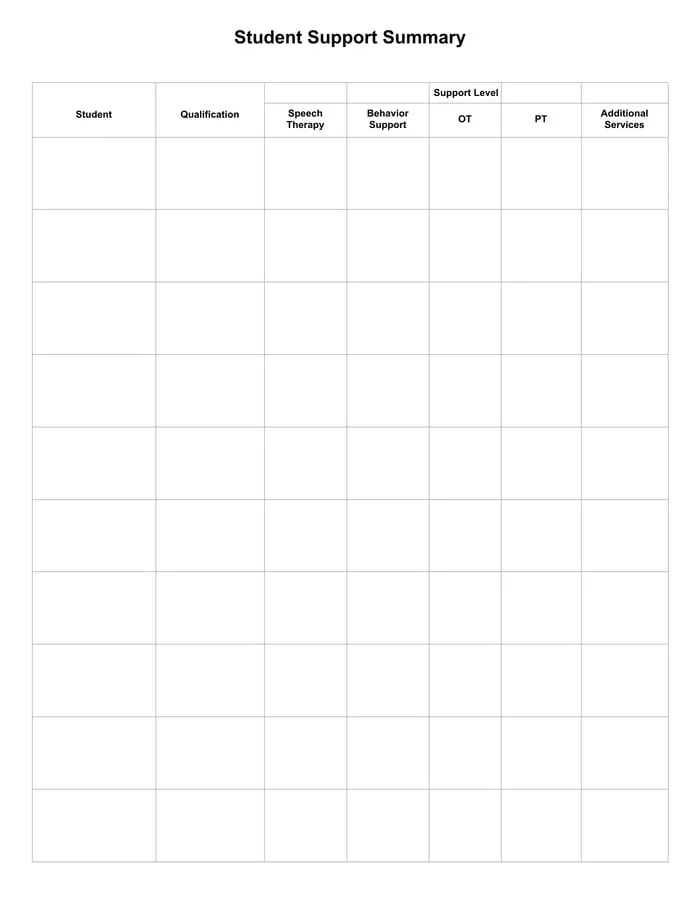
Student Support Summary: a fillable PDF with Student, Qualification, Speech, Behavior, OT, PT, and additional services columns, so you can see every student’s supports on one page.
Sources and scope
- Individuals with Disabilities Education Act (IDEA), U.S. Department of Education: the law and guidance on IEPs and related services.
- IRIS Center, Vanderbilt University: free modules on IEPs and collaboration.
- Center for Parent Information and Resources: plain-language information on IEPs and related services.
- Student Privacy Policy Office, U.S. Department of Education: guidance on protecting student records.
This guide covers building and maintaining a one-page caseload summary; it does not cover writing IEPs, determining eligibility, or deciding service minutes.
Key takeaways
- A special education service tracker shows a whole caseload on one page.
- Fill it from current signed documents, not memory.
- Short support codes keep the sheet easy to scan.
- Use it for schedules, meetings, new staff, and gap checks.
- Update it after every change and keep it private.










Leave a Comment