

A sped caseload list is the one page that holds every student you serve, and without it the start of the year can feel like a scavenger hunt through folders, emails, and sticky notes. Picture a case manager who is asked by the principal, “How many of your students have speech services?” and needs twenty minutes to find the answer. A clear roster turns that question into a ten-second glance.
By the end of this guide, you will be able to choose the right columns, build and secure your roster, use it to plan meetings and services, keep it current through the year, and turn it into a quick summary for your team. Each step includes a worked example you can adapt.
Examples are fictional. Adapt to your school’s procedures and privacy rules. This is general organization guidance, not legal advice.
At a glance
- Keep one roster with every student on your caseload, nothing scattered.
- Start with a few essential columns: name, grade, and eligibility.
- Store the roster securely and share it only with staff who need it.
- Use the list to plan meetings, schedules, and service minutes.
- Update it whenever a student enters or exits services.
1. Decide what your sped caseload list needs to show
A roster is only useful if it answers the questions you get asked most. Therefore, start by listing those questions. Common ones include “Who is on your caseload?”, “Which grade are they in?”, and “What is each student’s eligibility category?”
First, choose the essential columns. Student name, grade level, and eligibility category cover the basics for most case managers. Many teachers keep the core roster this simple, so it stays easy to read at a glance.
Next, decide whether you need a second, separate tracker for dates. Annual review dates, reevaluation dates, and service minutes change often. Some teachers keep these on a companion sheet, so the main roster stays clean.
Consider Ms. Rivera, a fictional resource teacher in an elementary school with 18 students on her caseload. She decides her main roster needs only three columns. She will track meeting dates on a separate calendar page.
| Column | Why it helps |
|---|---|
| Student name | Quick identification |
| Grade level | Scheduling and grouping |
| Eligibility category | Planning services and staffing |
Also, use the exact category names your district uses. Eligibility labels can differ slightly from place to place, and matching the official wording avoids confusion when you report numbers. If you are unsure, then check a current IEP or ask your special education coordinator.
Finally, write down your column choices before you build anything. A short plan saves time when you need to add or move information later.
2. Build and secure the roster
Once you know the columns, build the roster in one place. A fillable PDF, a spreadsheet, or your district’s system can all work. What matters most is that there is only one current version.
To begin, gather information from the official records, such as each student’s current IEP. Avoid copying from old lists, which may include students who have exited services. Then enter each student once, in a consistent order, such as by grade or by last name.
For a ready-made option, a fillable IEP student roster with name, grade, and eligibility columns gives you a clean single page that you can update digitally as students are added or exit services.
Next, think about privacy. A sped caseload list contains confidential student information. Store it in a secure, password-protected location your school approves, and share it only with staff who have a legitimate need to know. If you print it, then keep the paper copy in a locked drawer, not on your desk.
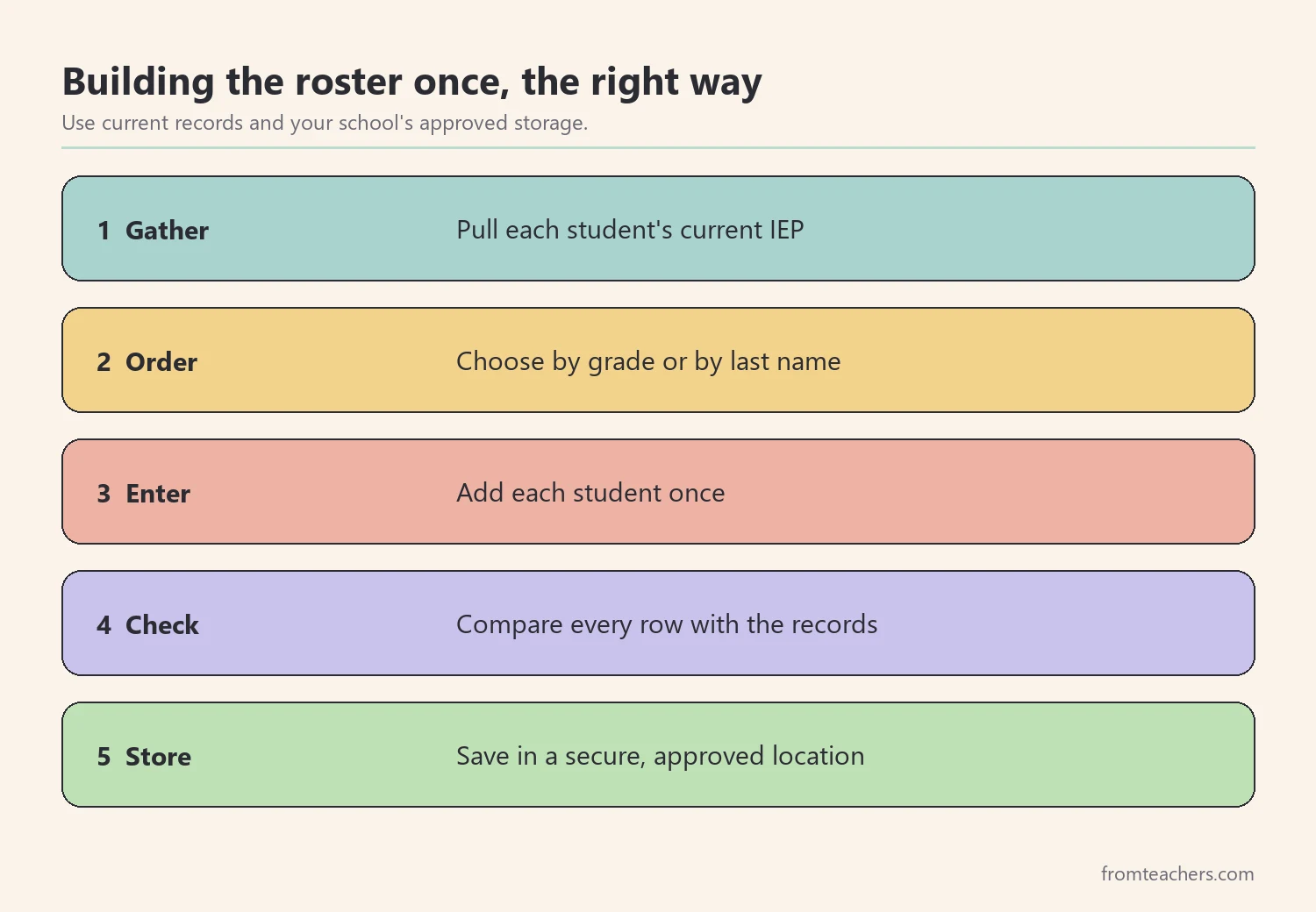
Before saving, check the roster against the source records one more time. Read each row aloud while looking at the IEP, or ask a colleague to spot-check a few names. Small errors, like a wrong grade or a missing category, are easy to catch now and hard to notice later.
Ms. Rivera pulls each student’s current IEP, lists students by grade, and saves the roster in her school’s secure drive. She also prints one copy for her locked file cabinet. As a result, she has the same information in both places.
3. Use your sped caseload list to plan meetings and services
A good roster does more than record names. It helps you see patterns that make planning easier. For example, grouping students by grade can show which classrooms you will visit most.
First, sort the list by grade. This helps you plan push-in support and pull-out groups, since students in the same grade often share a schedule. Then look at eligibility categories to see which related service providers you will coordinate with most.
Then think about the general education teachers you will work with. A quick count of students per classroom tells you who needs a short meeting at the start of the year to review accommodations. That small step builds trust and prevents surprises later.
Next, connect the roster to your meeting calendar. Even if dates live on a separate page, the roster tells you how many meetings to plan across the year. Spreading meetings out prevents a stressful pile-up in spring.
For Ms. Rivera, sorting by grade shows 3 students in kindergarten, 4 in grade 1, 3 in grade 2, 3 in grade 3, 3 in grade 4, and 2 in grade 5. Together, that makes 18 students. She uses this to set up small groups by grade band.
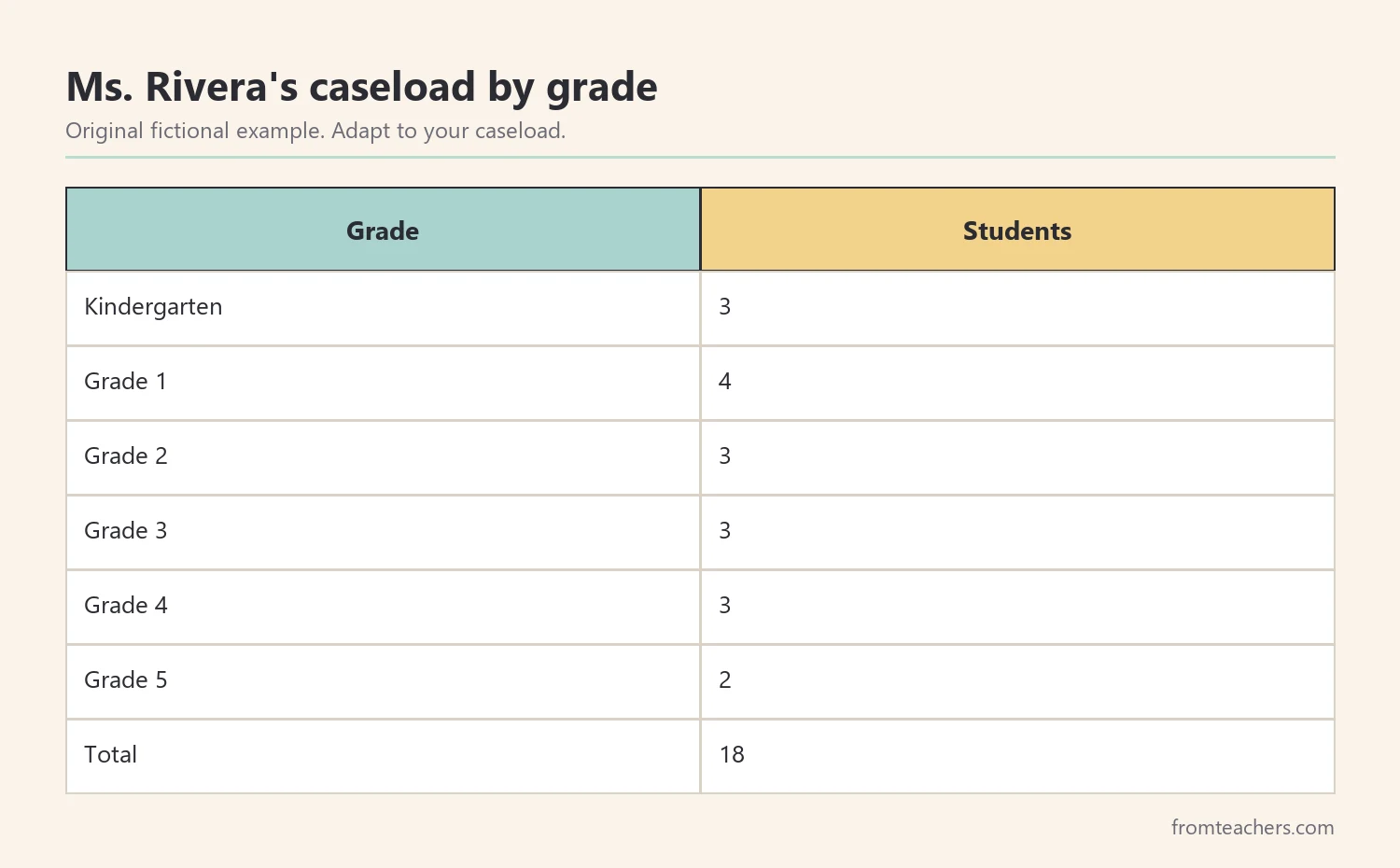
Likewise, the roster can show workload balance. If most of your students are in two grades, then you may need to cluster your schedule around those classrooms. If one category, such as speech or language, is common, then you will likely work closely with the speech-language pathologist.
In addition, the roster helps when a new adult joins the team. A paraprofessional or substitute can quickly see who they will support, without digging through files.
4. Keep the list current all year
Caseloads change. Students move in, move away, exit services, or change eligibility after a reevaluation. If the roster is not updated, it quickly becomes unreliable.
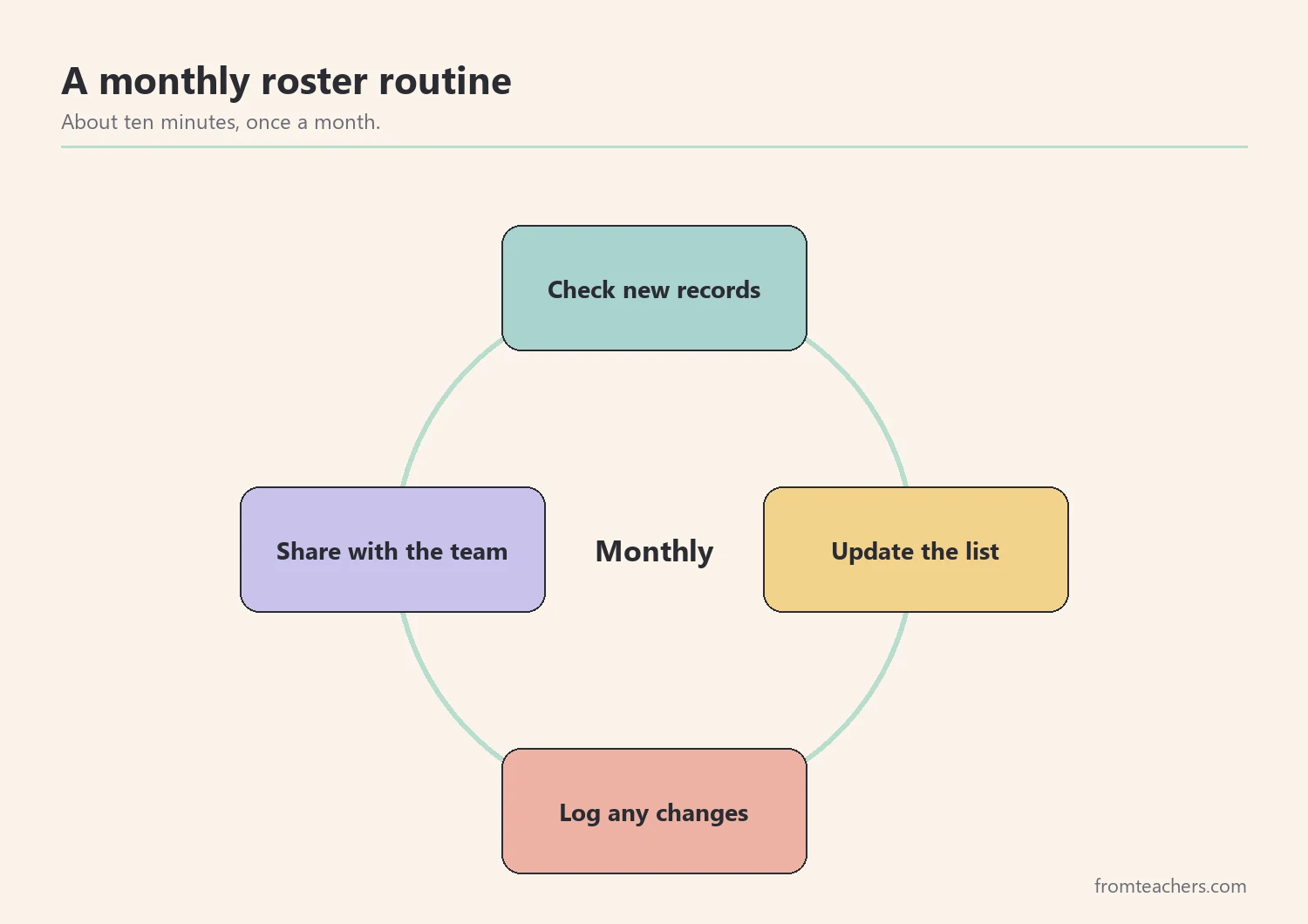
To stay current, set a simple routine. For example, update the list the same day a change becomes official, and do a full check once a month. A digital, fillable format makes edits fast and keeps the page neat.
Some teachers add a reminder to their calendar for the monthly check. A recurring ten-minute block on the first Monday of each month is enough for most caseloads. During that time, compare the roster with any new paperwork and fix anything that does not match.
Also, keep a short change log. Note the date, the student, and the change, such as “entered services” or “exited services.” This record helps when you need to explain caseload numbers to an administrator.
In October, Ms. Rivera adds one new student who transferred in with an IEP, and one student exits services after a reevaluation. Her caseload stays at 18. She updates the roster the same day and adds both changes to her log.
Keep in mind that the count can stay the same while the people change. That is why the change log matters: it explains what happened between two snapshots that look identical on paper.
Meanwhile, avoid keeping multiple versions. If you print a copy, write the date at the top, so everyone knows how current it is. Replace old printouts rather than adding to them.
5. Turn the sped caseload list into a quick summary
Administrators and teams often need a quick snapshot rather than the full list. A short summary, built from your roster, answers those questions without sharing more student detail than needed.
First, count students by eligibility category. Then count students by grade. These two counts cover most requests for caseload information.
For Ms. Rivera, the eligibility counts are: 7 students with a specific learning disability, 5 with a speech or language impairment, 3 with autism, 2 with other health impairment, and 1 with an intellectual disability. Together, those make 18, matching her roster.
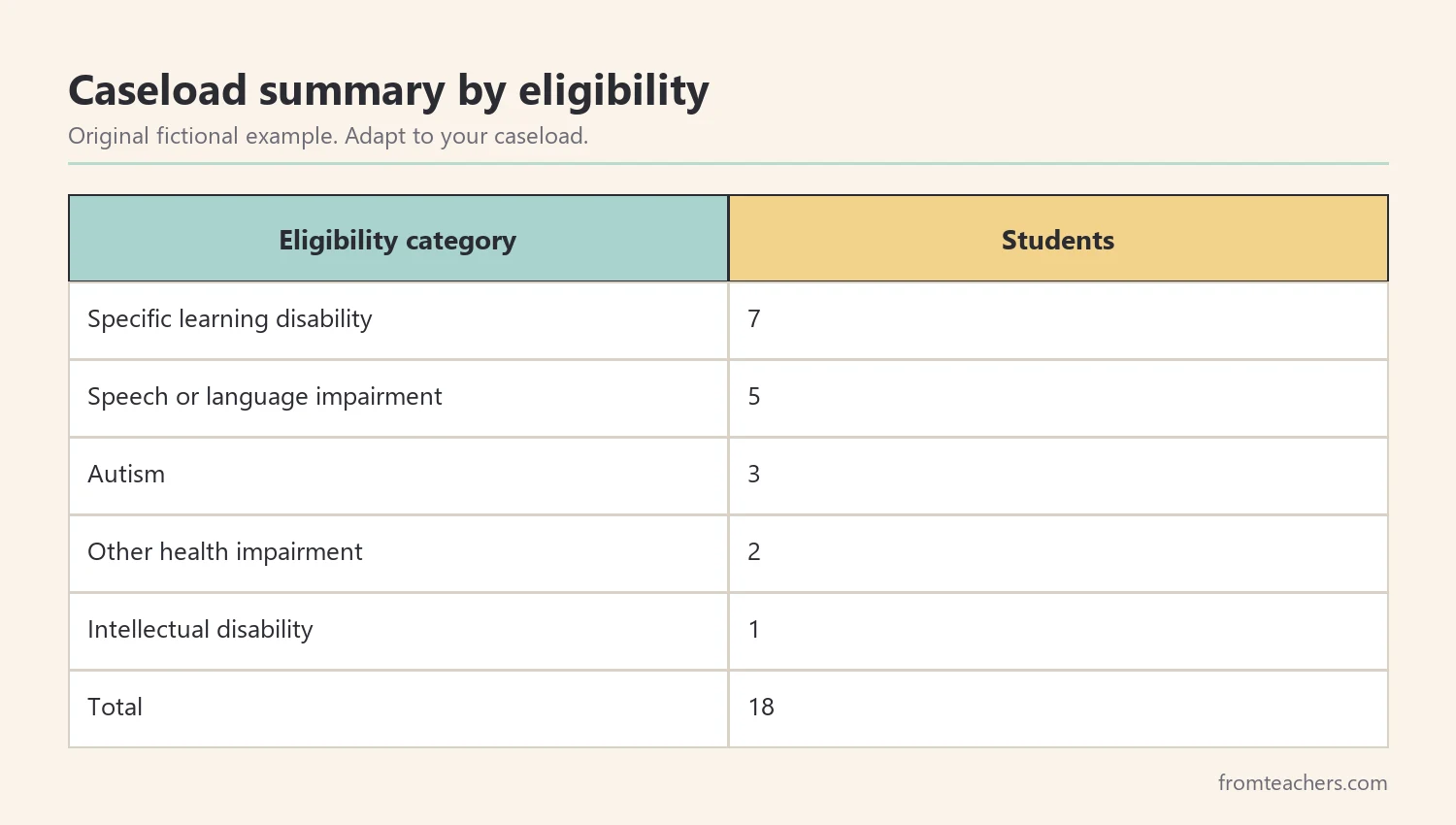
Next, double-check that your totals match. If the grade counts add up to 18 but the category counts add up to 17, then one student is missing a category on the roster. Fixing it now prevents confusion during an audit or a staffing meeting.
Similarly, keep summaries simple. A short table with categories and totals is easier to read than a long paragraph, and it can be copied into a staffing request or a meeting agenda with little effort.
Finally, share only what is needed. A summary with counts is often enough for planning. Share names only with staff who directly support those students.
6. Review the roster at key points in the year
Besides monthly checks, plan a few bigger reviews. The start of the year, the middle of the year, and the end of the year are natural times to look at the whole list.
Bigger reviews are also when a sped caseload list shows its value as a planning tool, because you can see the whole year at once rather than one student at a time.
At the start, confirm every student and every category against current records. At midyear, look at changes and plan for spring meetings. At year-end, prepare a clean list for the next year or for the next case manager.
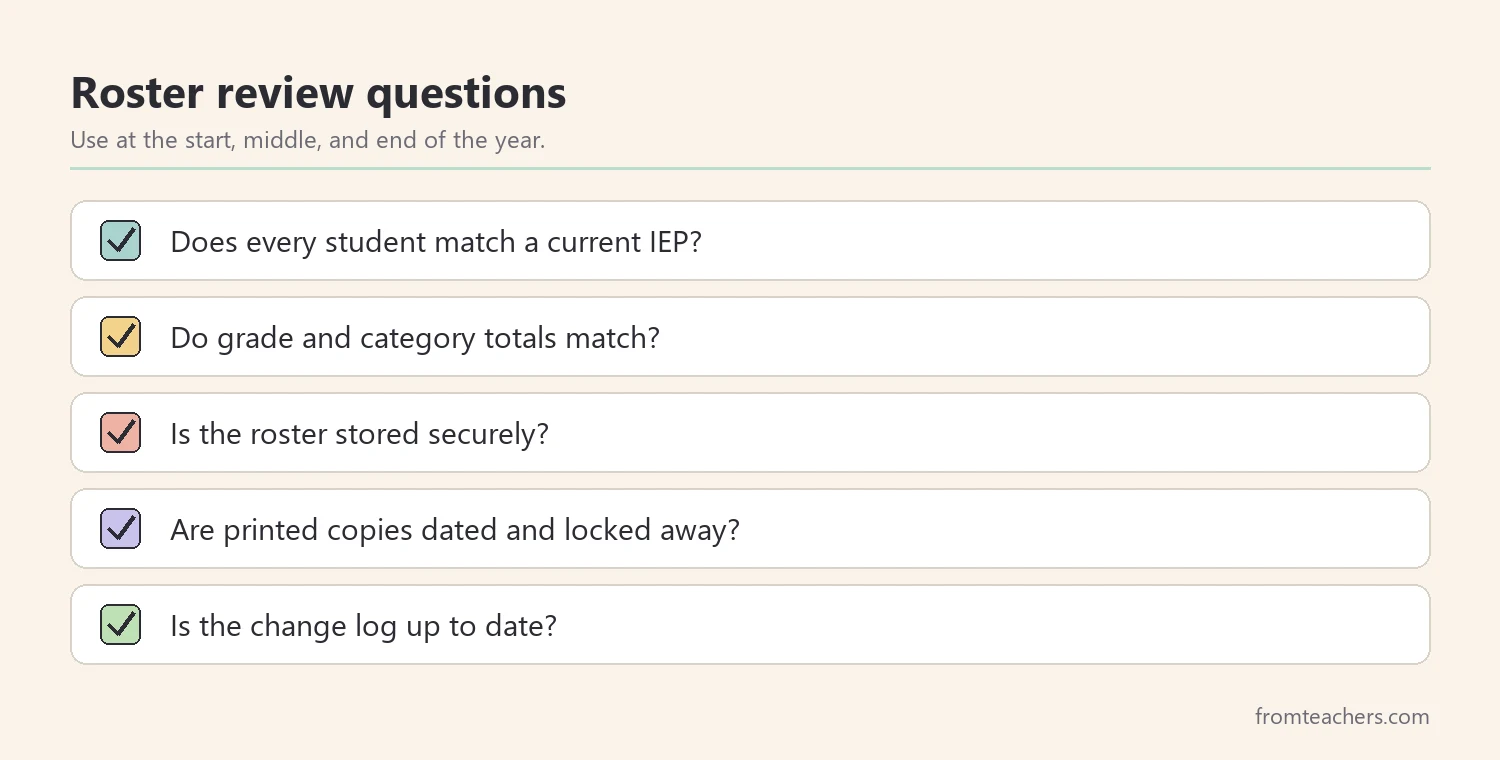
Each review is also a good moment to look at your own systems. Ask whether the columns still meet your needs, whether the storage location still works, and whether the team knows where to find the current version. Small adjustments now make the next year smoother.
Ms. Rivera uses the year-end review to write short notes for each grade 5 student who is moving to middle school. The clean roster also helps the receiving teacher see the full caseload on day one.
Over time, the roster becomes more than a list. It becomes a quick reference that supports planning, communication, and smooth handoffs between staff, which is exactly what a busy case manager needs.
Common mistakes and how to avoid them
- Keeping several versions. Fix: keep one current roster and date any printed copies.
- Copying from old lists. Fix: build and check the roster from current IEPs.
- Leaving the list unsecured. Fix: store it in an approved, protected location and share only on a need-to-know basis.
- Waiting to update. Fix: update the same day a change becomes official.
- Too many columns. Fix: keep the core roster simple and track dates separately.
Questions teachers and parents ask about a sped caseload list
What should a basic caseload list include?
Most case managers start with student name, grade level, and eligibility category. Other details, like meeting dates, often work better on a separate tracker.
Who can see the caseload list?
Only staff with a legitimate educational need, following your school’s privacy policies. Treat the roster as a confidential record.
How often should I update it?
Update it whenever a student enters or exits services, and do a full check about once a month.
Is a paper or digital roster better?
Either can work. A fillable digital format is easier to update, while a dated printout in a locked drawer can be a helpful backup.
Can parents ask about their child’s information on the list?
Parents generally have rights to review their own child’s education records. Follow your school’s procedures for those requests.
Related reading: Special Education: A Complete Guide for Parents and Educators, How Teachers Communicate With Parents in Special Education, and Accommodations vs Modifications in Special Education.
A companion resource for your sped caseload list:
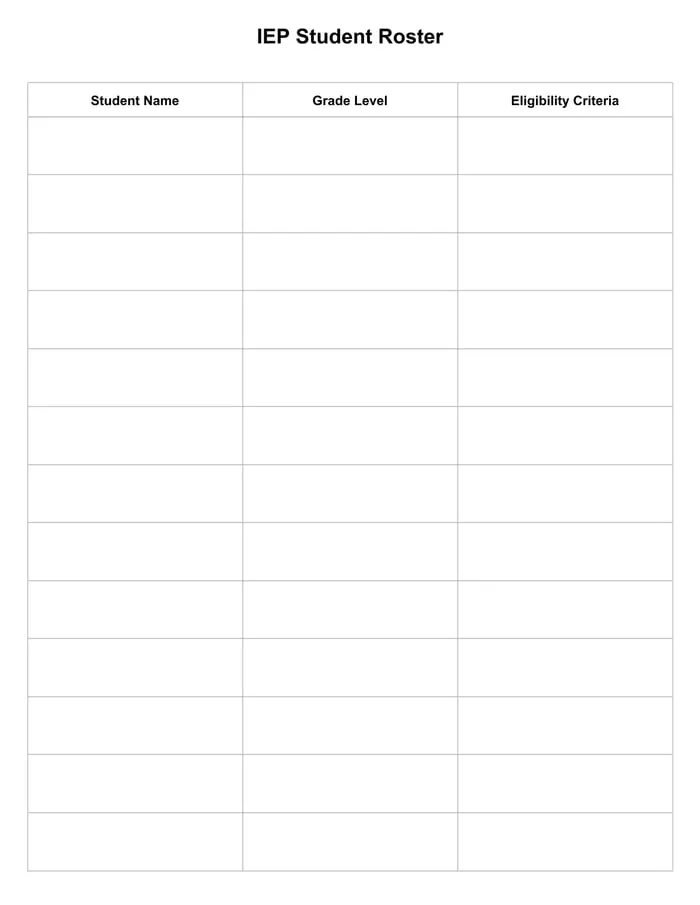
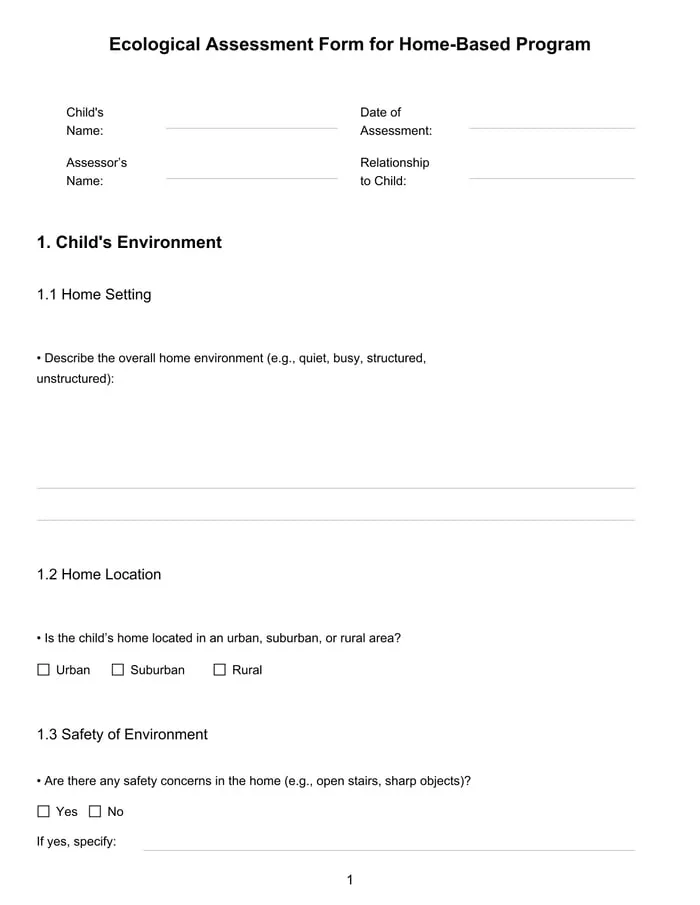
IEP Student Roster: a fillable PDF roster with Student Name, Grade Level, and Eligibility Criteria columns, in a roomy one-page layout that fits a full caseload.
Sources and scope
- IDEA, U.S. Department of Education: the law behind special education services, eligibility categories, and IEPs.
- Student Privacy Policy Office, U.S. Department of Education: guidance on FERPA and protecting student education records.
- Center for Parent Information and Resources: plain-language information for families about special education and IEPs.
- IRIS Center, Vanderbilt University: free modules on special education practices and the IEP process.
This guide covers organizing a caseload roster for everyday planning. It does not cover legal requirements, state-specific timelines, or district data systems, which you should confirm with your school or district.
Key takeaways
- A sped caseload list keeps every student on one clear page.
- Start with name, grade, and eligibility, and track dates separately.
- Store the roster securely and share it only when needed.
- Update it the same day a change becomes official.
- Build quick summaries from the roster and check that totals match.






Leave a Comment